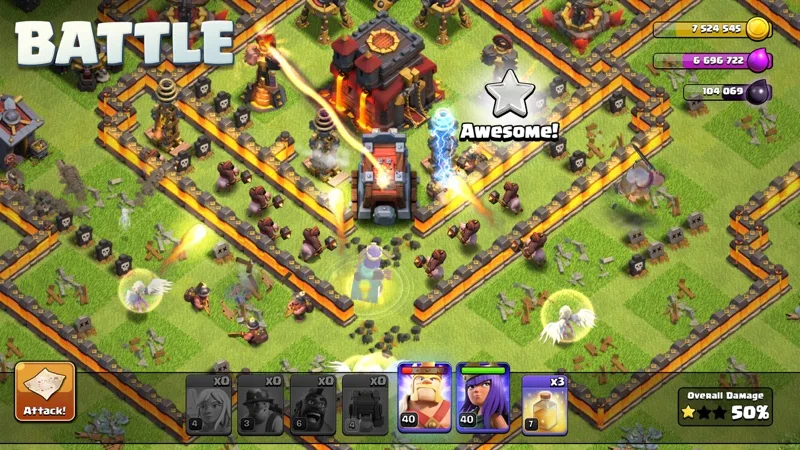
How to Play Clash of Clans and Clash Royale on Mac

- Simple method to install an Android emulator on Mac.
- Instructions on connecting a Supercell account.
- Optimization tips for a better gaming experience.
- Solutions to common problems encountered with BlueStacks.
Table of contents
- Introduction
- What are Clash of Clans and Clash Royale?
- Why play on Mac?
- Installing an Android emulator
- Step 1: Choose an emulator
- Step 2: Download BlueStacks
- Step 3: Install BlueStacks
- Step 4: Configure BlueStacks
- Step 5: Download Clash of Clans and Clash Royale
- Optimize BlueStacks settings for a better experience
- Custom controls
- Connect your Supercell account
- Common troubleshooting
- Conclusion
Introduction
Are you hooked on strategy games and want to dive into the Clash of Clans and Clash Royale universe on your Mac? No problem, I am here to guide you. Despite their popularity on mobile, there are several ways to enjoy these games on a computer. Let me show you how to download and play them hassle-free.
What are Clash of Clans and Clash Royale?
Before diving into the thick of it, let’s do a quick recap. Clash of Clans is a strategy game where you build your village, train troops and fight other clans. Clash Royale, meanwhile, combines elements of a trading card game with tower defense mechanics. Both games are developed by Supercell and have conquered millions of players around the world.
Why Play on Mac?
Playing on Mac offers several advantages. The bigger screen improves the gaming experience, and you can use your keyboard and mouse for better precision. Plus, some emulators give you access to additional features that mobile devices cannot offer.
Installing an Android Emulator
The most common way to play Clash of Clans and Clash Royale on Mac is to use an Android emulator. Here is how:
Step 1: Choose an Emulator
There are several Android emulators available, but the most popular are BlueStacks and NoxPlayer. For this article, we will go with BlueStacks, as it is easy to use and very stable.
Step 2: Download BlueStacks
Go to the official BlueStacks website and download the latest version. Click the download button and wait for the file to download to your Mac.
Step 3: Install BlueStacks
Once the download is complete, double-click the file to start the installation. Follow the on-screen instructions. This may take a few minutes, so be patient.
Step 4: Configure BlueStacks
When the installation is complete, open BlueStacks. On first use, you will need to sign in with your Google account. If you don’t have one, you can create one quickly. This will allow you to download apps from the Google Play Store.
Step 5: Download Clash of Clans and Clash Royale
Now that BlueStacks is configured, search for “Clash of Clans” and “Clash Royale” in the search bar. Click on the game you want to download, then on the “Install” button. Once the installation is complete, you can access the games directly from the BlueStacks interface.
Optimize BlueStacks Settings for a Better Experience
To fully enjoy Clash of Clans and Clash Royale, it is recommended to adjust a few settings in BlueStacks. Go to the graphics settings and choose an appropriate resolution. Also, enable the mouse sync option for more precise troop control.
Custom Controls
One of the big advantages of using an emulator is that you can customize your controls. Go to the control settings to configure the keys to your liking. For example, you can assign specific keys to place buildings or deploy troops.
Connect Your Supercell Account
If you have already played on mobile, it is crucial to connect your Supercell account on the emulator. Open the game and go to the settings. If you have a linked account, follow the instructions to recover your progress. If you start a new account, no problem, but remember that you will lose your past progress.
Common Troubleshooting
You may encounter problems when using BlueStacks. Here are some solutions to frequent issues:
- The emulator won’t launch: Check that your Mac meets BlueStacks’ minimum requirements. You may need to update your operating system.
- Lags or slowdowns: Adjust the graphics settings and allocate more RAM to BlueStacks in the settings. Also close other open applications to free up resources.
- Connection problems: If Clash of Clans or Clash Royale won’t connect, check your internet connection and restart the emulator.
Conclusion
There you go, you are ready to download and play Clash of Clans and Clash Royale on your Mac! The emulator lets you enjoy these games with an enhanced experience. Don’t forget to take your time to settle in and customize your game interface. Now it’s your turn to play, and feel free to come back for more tips and game advice!
FAQ
Can I play Clash of Clans and Clash Royale without an emulator?
No, to play these games on Mac, an emulator is required.
Is BlueStacks free?
Yes, BlueStacks is free, but there may be paid options for some features.
What other emulators can I use?
In addition to BlueStacks, you can try NoxPlayer or LDPlayer.
How do I recover my Clash of Clans progress?
Log in with your Supercell account inside the game to recover your progress.
What if BlueStacks crashes often?
Make sure your Mac meets the minimum requirements and try increasing the RAM allocated to BlueStacks.
See also
- Clash of Clans — Barbarian’s Odyssey: how to maximize the July 2026 Summer Jam
- Clash of Clans: the Barbarian King arrives from TH4 with the May 2026 update
- Clash of Clans: Hero Journey, Ruin Witch and Angry Spell — everything about the June 2026 update
- All mobile games